Coat of arms maker
Design a personal decorative coat of arms with Family Crest Maker. Same homepage studio as the family crest maker — not official heraldry and not a granted coat of arms.
Last updated: 2026-10-10
Coat of arms maker
A coat of arms maker is a studio for designing a personal emblem: a shield or seal, a few symbols you can explain, optional lettering, and a visual finish. On Family Crest .app that studio is Family Crest Maker — the same product as the homepage family crest maker. People search both phrases and arrive at the same homepage composer.
This page explains the everyday meaning of a coat of arms, how this decorative maker differs from official heraldry, and how to design a personal emblem in the composer. For a longer tutorial of briefs, styles, and downloads, open how to make a family crest.
Disclaimer. Family Crest Maker is a decorative AI design tool. Artwork from this coat of arms maker is not a granted coat of arms, not official heraldry, and not proof that a historical emblem belongs to your family. This website does not register arms, authenticate ancestry, or look up coats of arms by surname.
Coat of arms and crest, in everyday words
In formal heraldry, a coat of arms is a composed achievement. The shield is the center. Around it you may see a helmet, a crest on top of that helmet, supporters, a motto, and other ornament. A crest, strictly speaking, is only the device above the helmet. Everyday search language often treats “family crest” and “coat of arms” as the same picture: a shield with symbols, a name, and a ceremonial finish.
This studio follows that familiar wording because that is how people describe the artwork they want. Here, coat of arms maker means a tool for new decorative artwork — not a clerk who records grants or an officer of arms who assigns bearings.
Keep the two ideas apart:
- Historical / official coat of arms. Associated with a specific person or documented family under a country’s heraldic practice. Entitlement is a legal and archival question, not an image-generation question.
- Decorative personal emblem. A new design you invent for a household, a studio mark, or a print. It can borrow the look of a shield and motto without claiming that anyone granted those arms.
Family Crest Maker works on the second idea. The first belongs with documented genealogy and the relevant heraldic authority.
What this maker is — and is not
Family Crest Maker is an AI-assisted design studio. You choose a visual style, enter a name and an optional motto, and write a short story that acts as a design brief. The homepage composer turns that brief into images you can compare, save, and download.
You can browse styles on the homepage or in the materials library without an account, and prepare a name, motto, and story before you spend credits. Generating requires sign-in and uses the credit cost shown in the studio. Saved results download as a PNG or a printable image PDF. The maker is the same studio whether you searched for a family crest or a coat of arms. There is not a second product or a hidden official register behind this page.
The limits matter as much as the features:
- This site is not a heraldic authority. It does not grant arms or issue a certificate a court or college of arms would recognize.
- It is not an ancestry service. A generated image cannot show that an ancestor held arms.
- It is not a lookup tool. The studio will not return “the” historical coat of arms for a name you type. A shared name does not create a right to inherited arms.
- It is not a drag-and-drop heraldic editor. You write a brief, pick a style, and review generated pictures.
How the studio works
The composer keeps a small number of inputs on purpose. Too many competing objects usually produce a noisy picture.
Style. The library describes finish more than meaning: engraved lines, painted color, gilded ornament, metal relief, a letter emblem, a silhouette, plus a custom option. The cards are inspiration — not a preview of your personal generation, and not blank worksheets.
Name and motto. The name is creative lettering, not a claim of title. Keep it short (up to 60 characters). Add a motto only if you will still want those words in a year (under 100 characters). Inspect every character before you print; AI-generated text can misspell words.
Story. Treat the story as a design brief, not a biography (under 500 characters). Name the main subject, the arrangement, one supporting detail at most, two or three colors, and the intended use. Say what to leave out.
Shape and credits. Square 1:1 suits a balanced seal, landscape 4:3 a wide frame, and portrait 3:4 a vertical card. Generating a coat of arms uses credits and requires sign-in; browsing does not. Compare subscriptions and one-time packs on the pricing page before you pay. Checkout is handled by Stripe. Subscriptions renew until you cancel.
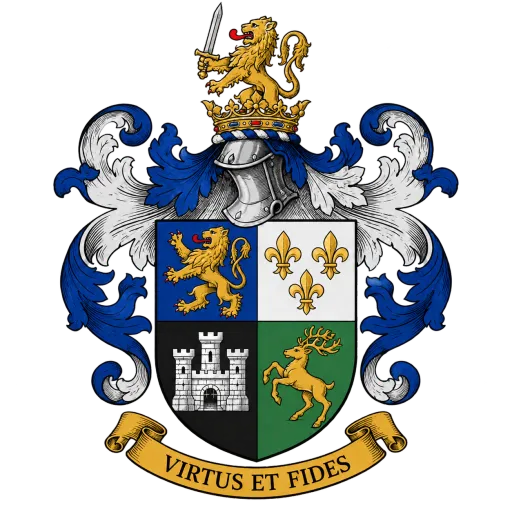
Design a personal emblem in the homepage composer
Open the Family Crest Maker composer when you have one story you can explain in your own words. You do not need drawing experience. You do need a short idea that can survive at a small size.
Write down three qualities the design should express — for example resilience, curiosity, and a coastal home. Pick one central symbol that stays readable when the image is small, and one supporting motif at most. Name two or three colors, such as ivory, deep green, and antique gold. Meaning here is personal; an online symbol chart is not proof about an ancestor.
Match finish to the object you have in mind. Fine engraving or classic heraldry suits a framed print. A letter emblem or silhouette holds up on a small card. Gilded or painted styles read as ceremonial, so check that small details survive at the real size. Custom lets you upload a reference image (PNG, JPG, or WebP, up to 2 MB) and/or describe a finish. The upload is a style reference, not a finished result, and it stays in the current browser tab. Each generation uses the style selected when you submit.
A useful brief names five things in order: the main subject, the arrangement, supporting details, the palette, and the intended use.
Example:
A shield with one oak tree for our roots, two small stars, ivory and deep green, a short motto on a simple ribbon, and a hand-engraved finish for a framed print. Leave out extra animals and keep the background quiet.
If a detail is not important enough to explain in a sentence, leave it out of this generation.
On the homepage crest composer:
- Select a style, or choose Custom and add a reference and/or a style description.
- Enter the name in the form you want to see on the artwork.
- Add a motto only if the words still matter after the novelty fades.
- Write the story using the five-part order above.
- Choose the image shape.
- Review the credit cost shown in the studio and sign in if you have not already. Your draft is kept in this browser tab through sign-in when storage is available.
You can browse and prepare the brief without paying. Generation is a paid studio action. If you need more credits, compare options on pricing. If AI generation is not connected yet, the studio will say so before you spend credits.
Submit the request and wait. Generation can take a few minutes. Keep the tab open, or use the recovery request ID if you need to check status later. Checking status does not start another generation.
When results appear, compare the available images instead of keeping the first one by habit. Read every letter on the name and motto; if a character is wrong, fix the brief and generate again. If you have to hunt for the main symbol, the brief was too crowded. The style example beside the composer is not your personal result.
Save the design you prefer. Saved emblems appear in My creations when you are signed in. Download anything you want to keep. If a generation fails or is canceled by the studio, reserved credits are returned once. Disliking the artwork is not a failed generation.
After you have an image
After you save a design you can download a PNG at the original resolution or a printable image PDF. The PDF contains a raster image. It is not editable vector artwork, and SVG is not offered.
Before you send a file to a printer, confirm the actual pixel dimensions — enlarging a small image does not invent extra detail. Check lettering and fine lines at the real size, and ask the printer for format and minimum size. Material-library downloads are style references, not your generated coat of arms.
A decorative emblem can become a framed print or stationery after you review the artwork terms. None of that use turns the picture into official recognition.
Common misunderstandings
“The generator will show me our historical arms.” It will not. A generated image is new artwork. For historical questions, use documented genealogy and the relevant country’s heraldic authority — not this studio. The how-to guide covers the same limit.
“A coat of arms maker should assign symbols by name.” This one does not. You choose symbols you can explain. The studio will not map a name onto a stored historical shield.
“If the picture looks official, it is official.” Finish is decoration. Gold paint and a helmet do not create a grant.
“More objects make a richer coat of arms.” Usually they make a muddier one. One subject and a short motto survive small sizes better.
“I can skip pricing until after I generate.” Know the cost before you submit. Review pricing if you need a pack or a subscription.
When you are ready
Return to the homepage composer with one story, one main symbol, and a style that matches the final use. For the longer tutorial, open how to make a family crest. To compare finishes, browse the materials library. If you need credits, use pricing. If you are designing the emblem as a wedding, parents, or holiday gift, see family crest gifts.
This coat of arms maker is a decorative studio for a personal emblem. Use it to invent something you can explain — not as a substitute for a grant or an official register.
Contact
Questions about an order or a generation belong in the in-app support ticket form (sign-in required). Include the request ID or order number when you have one.